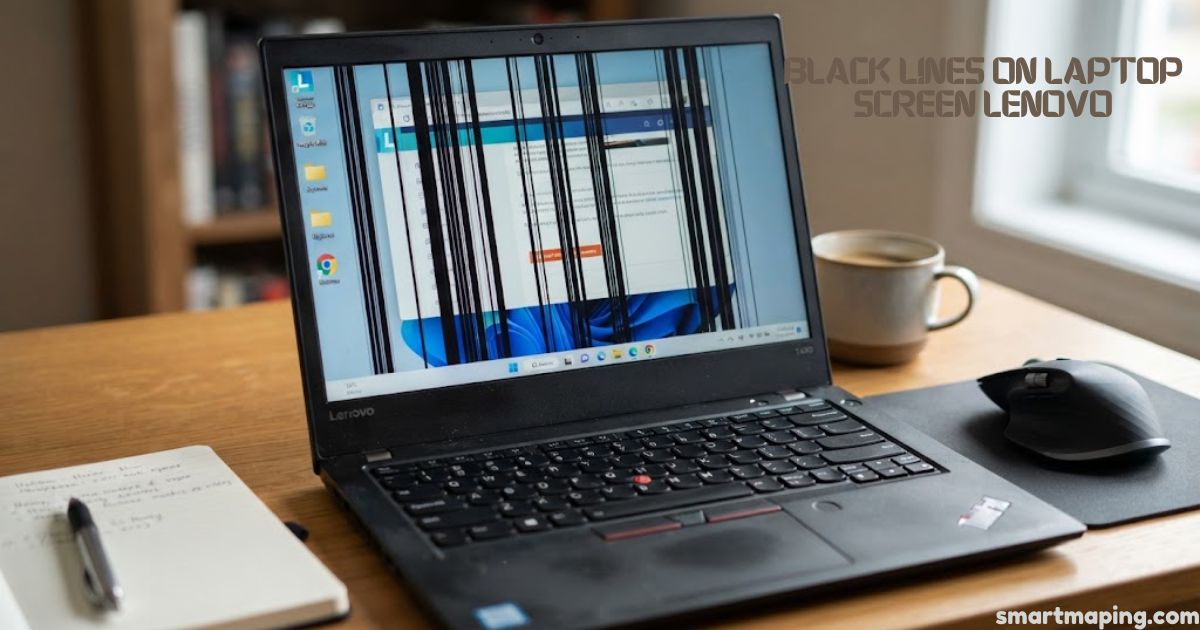
Black lines on laptop screen Lenovo owners report can look alarming, but many have simple causes. A thin vertical stripe or a band of horizontal lines usually traces back to the LCD panel, the display cable, or the graphics driver.
A failed panel needs a new screen, which is a routine repair, but plenty of cases turn out mild. This guide covers ThinkPad, IdeaPad, Yoga, Legion, Flex and LOQ models and shows how to diagnose the fault in about five minutes before you spend money.
What Causes Black Lines On Laptop Screen Lenovo
A loose or worn display cable leads the list, because the ribbon cable bends through the hinge every time you open the lid. Physical pressure is next: objects left on the keyboard before closing the lid can crack the LCD layers and leave a permanent black line.
Panels can also fail from manufacturing defects, age, or extreme heat and cold. Software causes include a corrupted graphics driver, a wrong resolution, or an unsupported refresh rate. The worst case is GPU or motherboard failure.
Step 1: Diagnose Before You Fix Anything
Run these tests in order.
- Lenovo built-in test. Shut down, power on, and tap F10 (or Fn+F10) at the Lenovo logo. On an IdeaPad, press the Novo pinhole button with a paperclip. Choose the Display (LCD) test and watch the solid colours. This runs before Windows loads and bypasses drivers, so lines here point to the physical panel or display assembly.
- Screenshot check. Press Windows+Print Screen and view the image on your phone. If the lines are missing from the picture, the panel is at fault.
- External monitor check. Connect a TV or monitor by HDMI or USB-C, press Windows+P, and choose Duplicate. A clean image proves the graphics hardware works. The same lines on both screens point to the GPU or motherboard.
Also open the BIOS screen (F2, or F1 on a ThinkPad). Lines there mean hardware, since no app can reach that far. Then open and close the lid slowly. If the lines shift with the angle, suspect the display cable or hinge, because the cable passes through it.
Step 2: Software Fixes
If you see black lines on laptop screen Lenovo models show only inside Windows, work through these fixes.
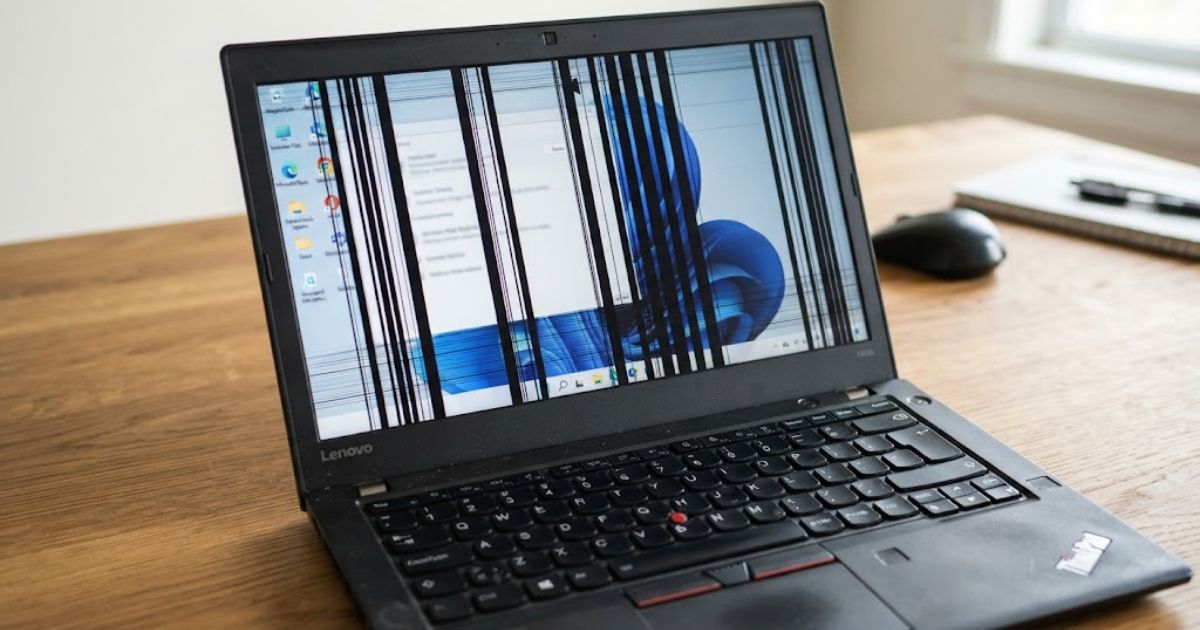
- Restart the graphics driver. Press Win+Ctrl+Shift+B. The screen blinks, a beep sounds, and the driver reloads without a reboot.
- Update drivers. Install Lenovo Vantage from the Microsoft Store, open Updates, and run the system update. It pulls display and chipset drivers tested for your model. If lines began after an update, open Device Manager, right-click your graphics chip, choose Properties, then Driver, then Roll Back Driver. Laptops with two graphics chips, like many Legions, need both the integrated and discrete drivers. For stubborn cases, do a clean install with Display Driver Uninstaller in Safe Mode, then update the BIOS with the charger plugged in.
- Test in Safe Mode. Hold Shift, click Restart, then choose Troubleshoot, Advanced options, Startup Settings, and press F4. A clean picture means a third-party app or driver is to blame, so uninstall recent apps.
- Check display settings. Set resolution to Recommended and choose a fixed refresh rate (60Hz, or 120Hz on gaming models) instead of Dynamic Refresh Rate.
- Run system scans. Open Command Prompt as administrator, run sfc /scannow, then DISM /Online /Cleanup-Image /RestoreHealth, and restart.
- Do a power reset. Shut down, unplug the charger and USB devices, and hold the power button for 30 to 60 seconds. Internal-battery models have an emergency reset pinhole. Your data stays safe.
Run the Lenovo Vantage hardware scan too (Support, then Hardware Scan, then Display). Save any failed report, because it strengthens a warranty claim.
Step 3: Read the Line Pattern
- Single thin vertical line: usually a failed column driver or pixel column, though a loose cable can cause it too.
- Horizontal band or line: a failing row driver, while evenly spaced stripes often mean cable wear at the hinge.
- Lines that change with the lid angle: the hinge and display cable need a reseat. This is common on IdeaPads.
- Lines after a drop or pressure: impact damage, even with no visible crack. Lines that multiply or widen mean progressive failure. An ink-stain blotch is crushed liquid crystal, so never rub it.
- Lines on dark backgrounds only: a backlight or pixel problem rather than a cable fault.
- Lines under heavy load: overheating, so clear dust and open the vents.
Step 4: Hardware Repair and Warranty
Before paying for any repair, check your warranty. Enter the serial number from the bottom of the laptop on Lenovo’s support site. Lines with no drop or impact may count as a defect, and cable faults may be covered too. Only Accidental Damage Protection covers drops and spills. Do not open the laptop while cover remains, because removing the back panel can void it.
If you are out of warranty, try the cable reseat if you are confident. It is an advanced job taking 20 to 30 minutes. Unplug everything, remove the screws, lift the back panel, lift the connector’s locking tab, pull the cable, wait 30 seconds, and push it back until it clicks.
A screen replacement is a matching job before an installation job. Lenovo uses dozens of panels, and a “14-inch screen” is not a part number. Resolution, brightness, refresh rate, touch support and connector type must all match, or you may end up with a dimmer screen or a dead touchscreen. Touch models replace the whole bonded digitizer and LCD assembly, and OLED panels cost more. A shine-a-torch test helps: a faint image means a dead backlight.
If artefacts worsen as the laptop heats up, the GPU may be failing. A board-level reball or reflow can renew the solder, but it rarely justifies the cost on an old machine.
Other Symptoms
- Black screen: if the fans spin but nothing shows, press Win+Ctrl+Shift+B, then do a power reset. If it won’t power on, hold the button 60 seconds and charge for 30 minutes. Disable Fast Startup under “Choose what the power buttons do.”
- Flickering: turn off Panel Self Refresh in Intel Graphics Command Center, then switch off CABC in Lenovo Vantage and adaptive brightness in Power Options.
- Dim screen: check battery saver, the Fn+F5 and Fn+F6 keys, and install Lenovo Vantage or the Hotkey Features package.
- Wrong colours: turn off Night Light and Eye Care, and untick “Use my settings for this device” in Colour Management.
- Dead touchscreen: in Device Manager, disable and re-enable the HID-compliant touch screen.
Temporary Workaround, Repair Value and Prevention
If an external monitor works perfectly, the graphics chip and drivers are fine and the fault lies in the panel or cable. Use HDMI as a workaround while you plan the repair. Stable lines that haven’t changed for days are safe to live with, but stop using the laptop if lines spread quickly or you hear crackling. Your files are rarely affected.
For most black lines on laptop screen Lenovo repairs, fixing wins on laptops about six years old or newer, especially ThinkPads, Yogas and Legions, since the keyboard, board and chassis outlast the screen. Entry-level IdeaPads are a judgment call, so compare the quote with a new machine.
To prevent a repeat, use a padded sleeve and never wedge books or chargers against the lid. Open the lid from the centre with both hands, handle Flex and folding hinges gently, and keep the vents clear of soft surfaces.
FAQs
How do I get rid of black lines on my screen?
Press Win+Ctrl+Shift+B to restart the graphics driver, then update drivers and check the display settings. If the lines stay, the panel or cable is likely faulty.
How can I fix black lines on my laptop screen?
Run the built-in diagnostic (F10 on Lenovo) to see whether the screen or the software is at fault. Then update the graphics driver, do a power reset, or reseat the display cable.
What is the Lenovo black screen of Death?
It is a black screen where the fans spin and the lights glow but nothing shows on the display. Don’t worry, a power reset or graphics driver restart often brings it back.
Why did my screen suddenly have lines?
Sudden lines usually come from a loose display cable, a corrupted driver, or pressure damage to the panel. Heat, a recent update, or a drop can trigger them too.
How to get rid of black lines?
Start with the quick fixes: restart the driver, update it, and test in Safe Mode. If the lines appear on an external monitor too, the graphics chip is the cause; if not, the panel needs repair.
How to remove black bars from computer screen?
Set the resolution to Recommended and choose a fixed refresh rate in Display settings. Then update the graphics driver, since wrong settings and old drivers cause most black bars.